A guide for attorneys
CREdili is where a commercial property purchase gets done. It prepares the papers and reads the documents; you, the attorney, check them and approve them. This guide walks you through every screen you will use, in order.
How it works, in one minute
Four people work on every deal:
- The admin runs the deal day to day: adds the documents, keeps things moving, and answers questions about facts.
- The buyer is the client buying the property. They see the papers once you have approved them, and say whether they will sign.
- You, the reviewing attorney, check the legal papers and approve them, or say what has to change. Questions about what a clause means come to you.
- CREdili drafts the papers, reads every document, and points out what deserves your attention — always with the page and the exact words.
A deal moves through five stages, shown as a bar across the top of every page: the valuation, the offer letter, the purchase agreement, due diligence (checking everything about the property) and the closing. You are asked to act in the last four.
Signing in
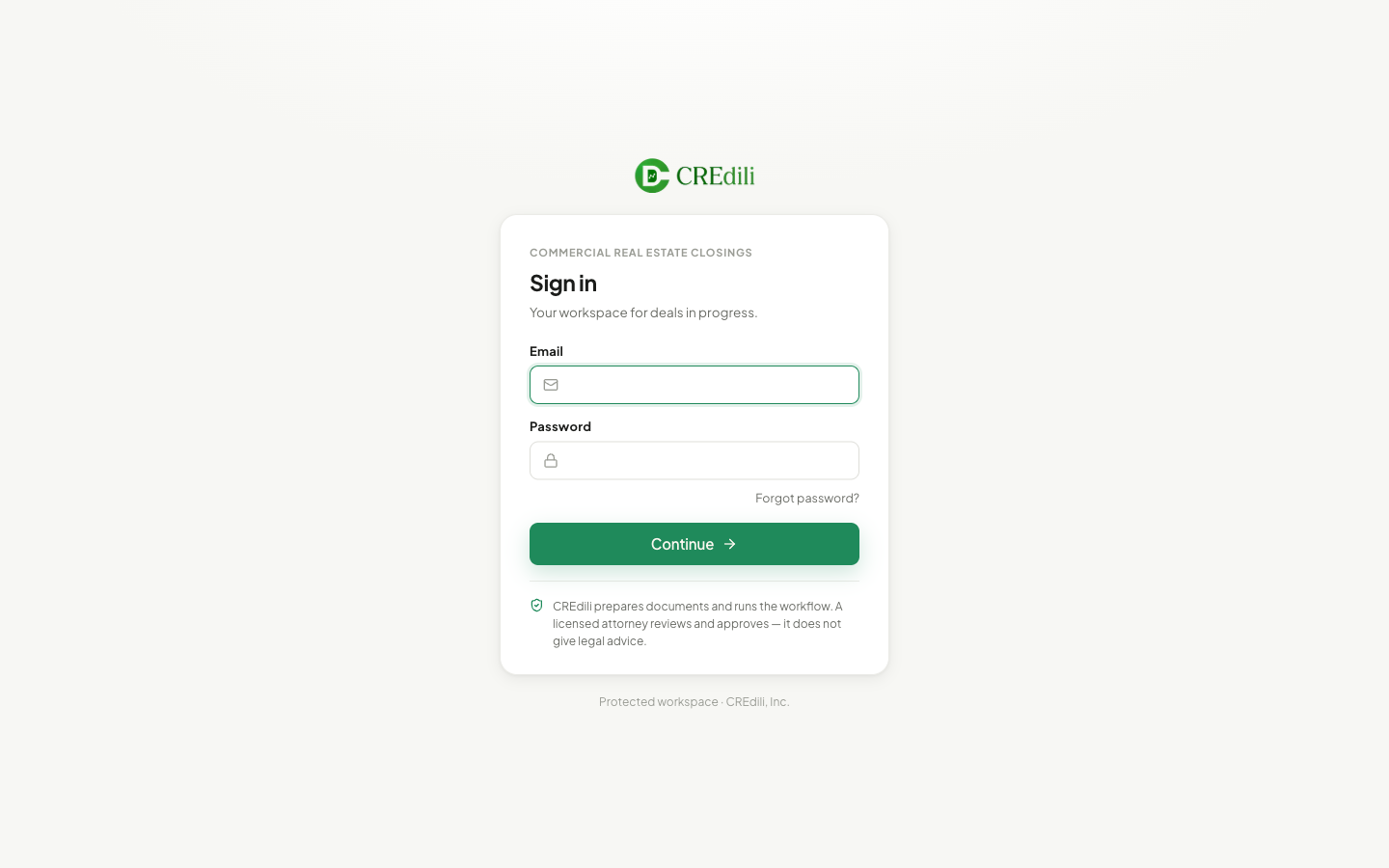
- Go to www.credili.ai/login, or use the link in your invitation email.
- Type your email and your password.
- Press Continue.
Your deals
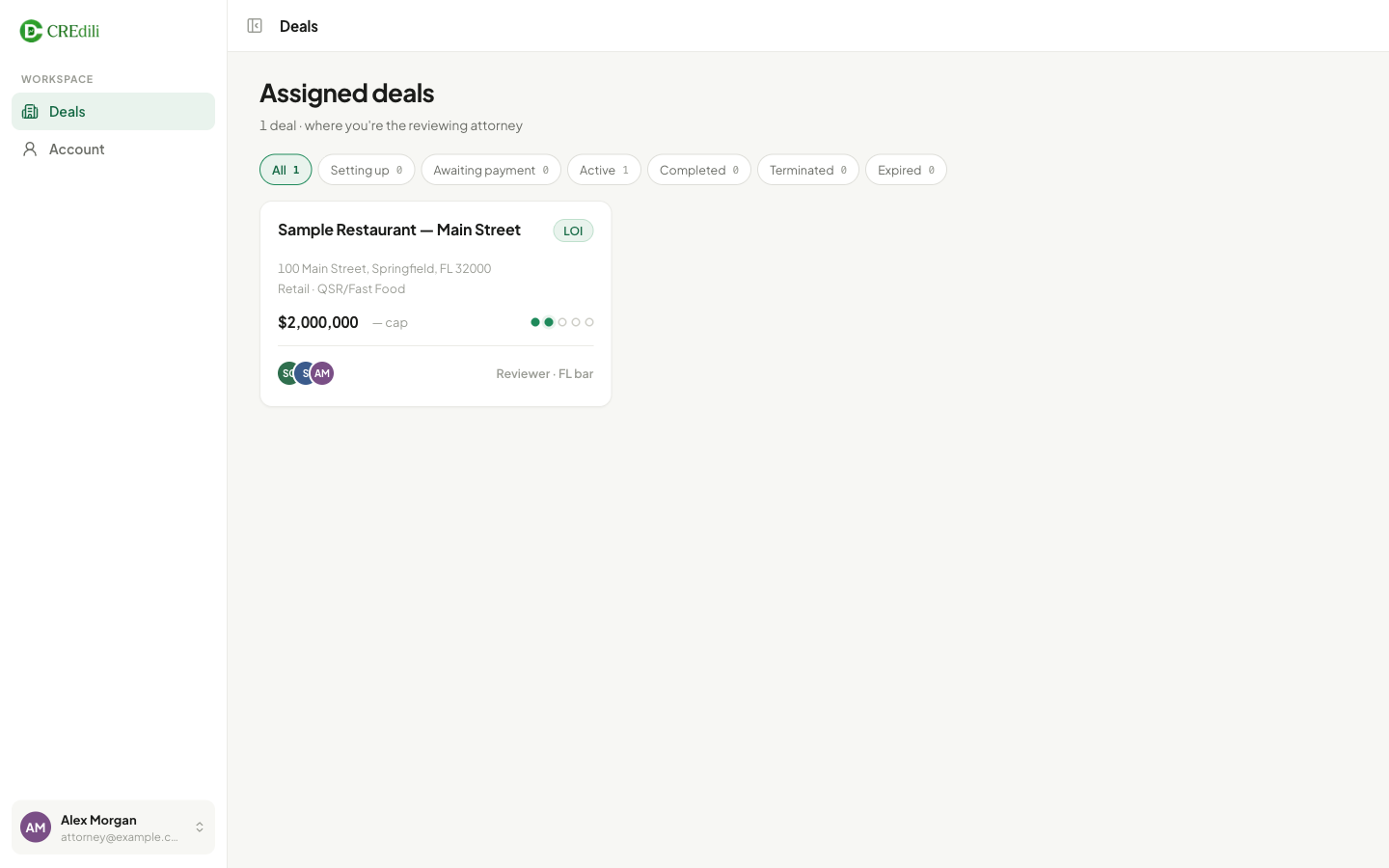
After you sign in you land on Assigned deals. Each card is one deal and shows:
- the property's name, address and type, and the price;
- a small label with the stage the deal is in — for example LOI (the offer letter);
- five dots, one per stage: filled dots are stages already done;
- your role on the deal — for example “Reviewer · FL bar”.
The buttons above the cards filter the list: Active deals are under way, Completed ones have closed. Click a card to open the deal.
Inside a deal
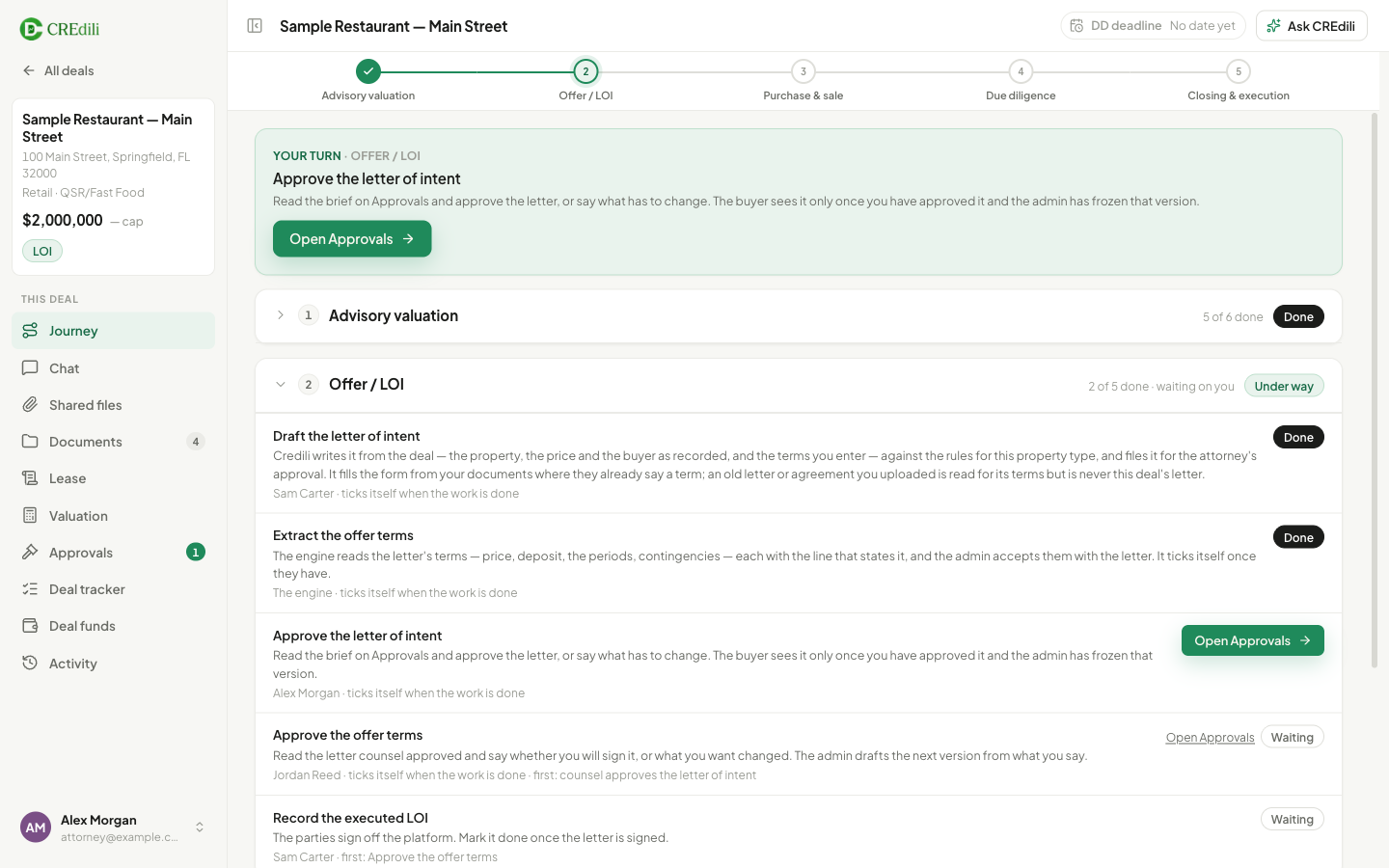
A deal opens on its Journey page:
- The bar at the top shows the five stages. A tick means done; the circled number is the stage the deal is in.
- The green box appears when something is waiting for you. It says what, and its button takes you straight there.
- The list below shows every step of each stage, who does it, and whether it is done, under way or waiting.
The menu on the left has everything else about the deal:
- Approvals — the papers waiting for your decision. The number beside it counts them.
- Documents — every document on the deal, each with what CREdili read from it.
- Lease — the tenant's lease, analyzed rule by rule.
- Deal tracker — the deadlines and the reports ordered for the property.
- Chat — messages with the admin and the buyer.
- Activity — a record of everything that has happened on the deal.
Your approvals
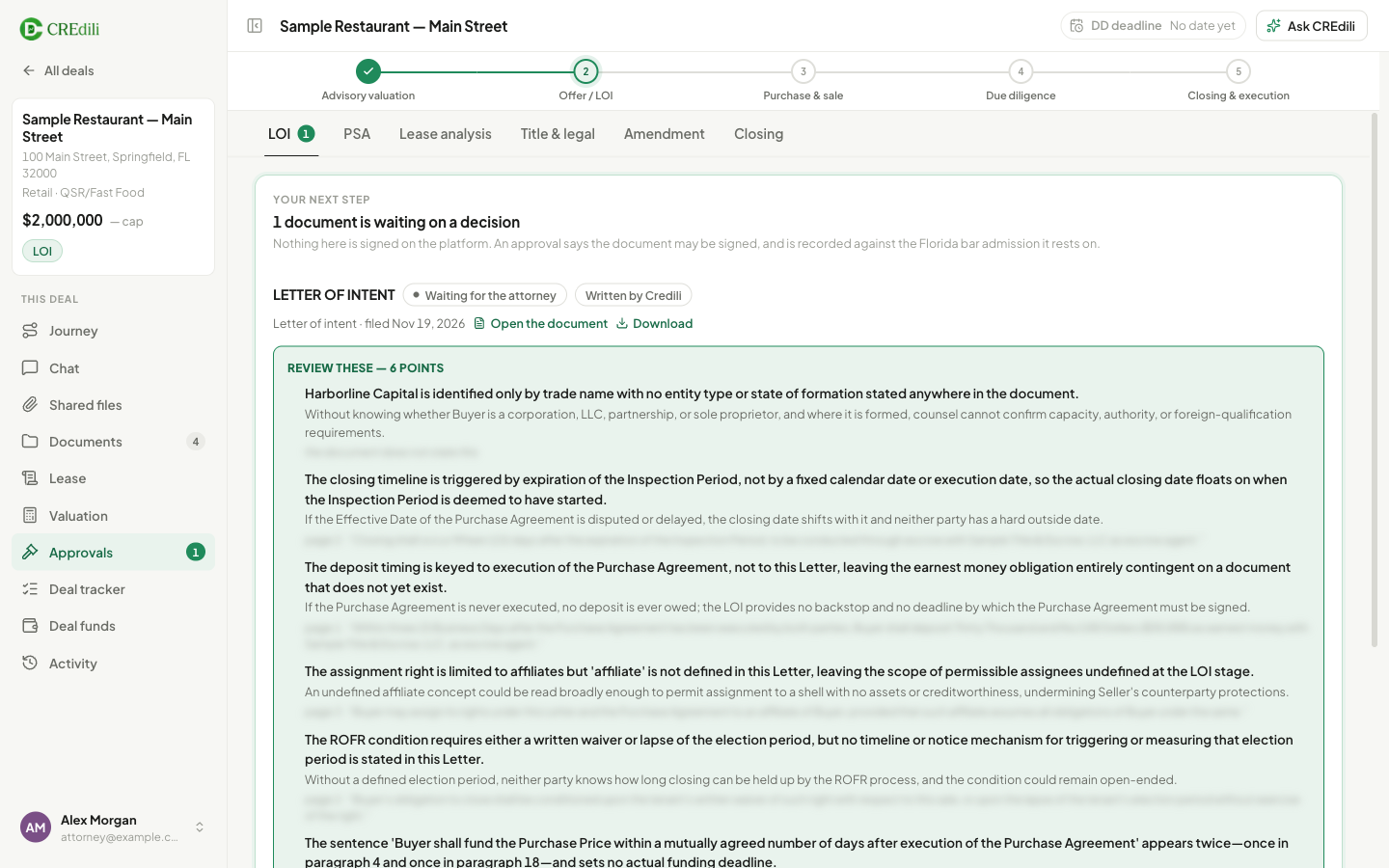
Approvals is where you do most of your work. The tabs across the top are the kinds of paper: LOI (the offer letter), PSA (the purchase agreement), Lease analysis, Title & legal, Amendment and Closing.
Each paper shows:
- its status — for example Waiting for the attorney or Approved for signature;
- Open the document and Download, to read the paper itself;
- Review these — the points CREdili found worth your attention, each in plain words, with the page and the exact sentence it comes from;
- What it says — every term of the paper, opened when you click it.
Approving a paper
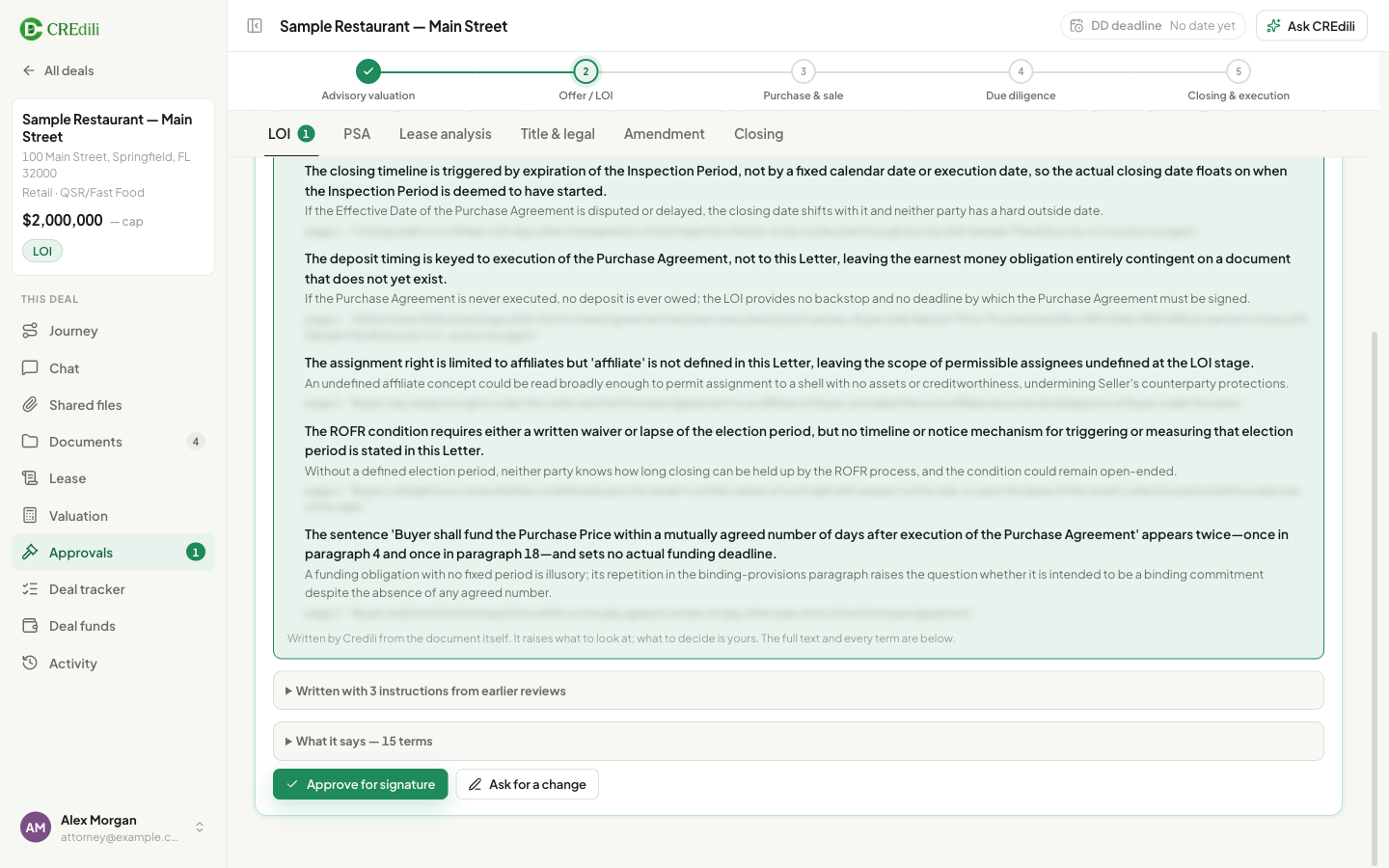
- Read the points under Review these, and open the document if you want to.
- Press Approve for signature.
- Add a note if you like. The admin always reads it; tick the box under it if the buyer may read it too.Suggest with AI writes a first draft of the note for you to change.
- Press Approve for signature again to confirm.
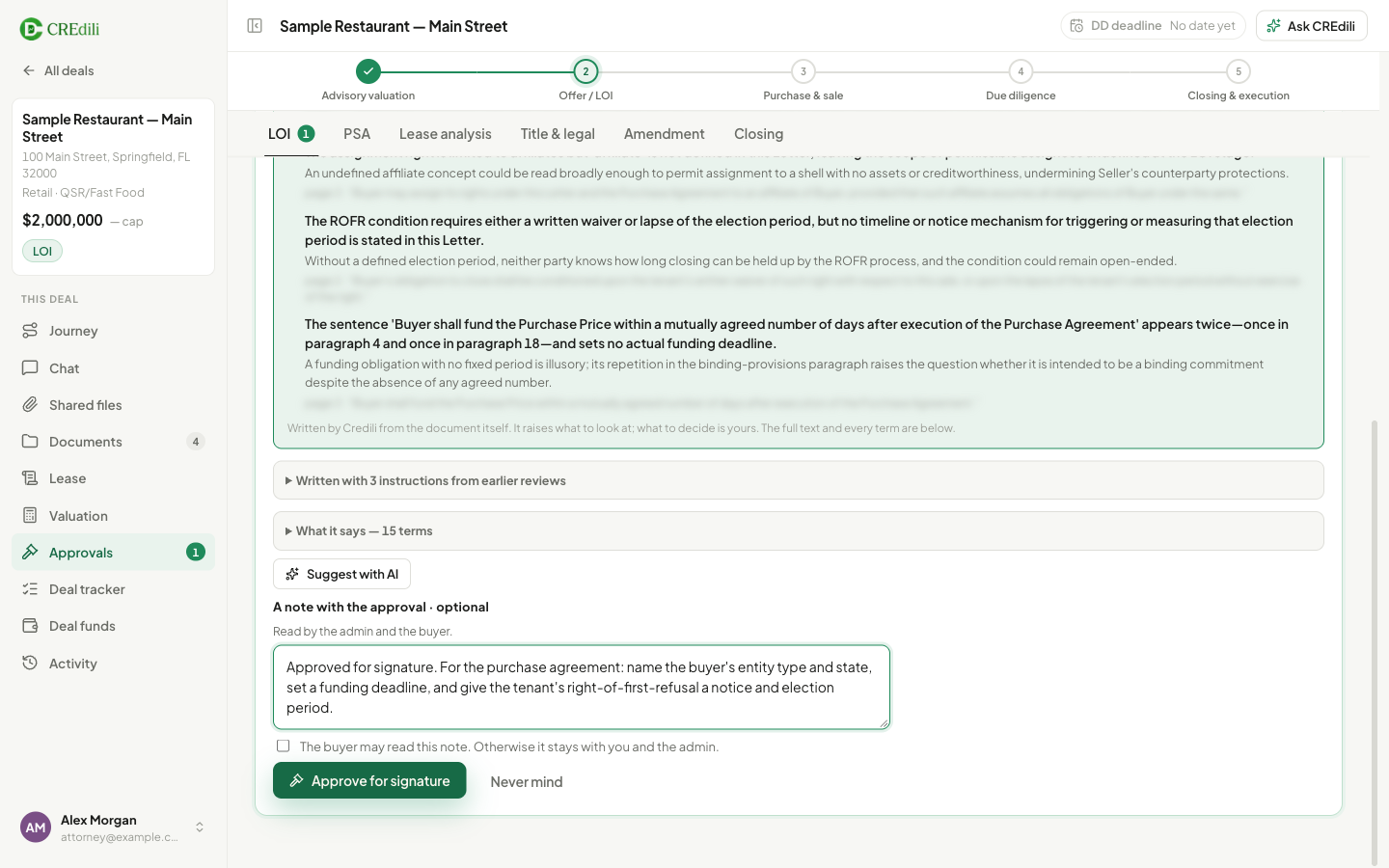
What happens next: the admin freezes the version you approved, so it can no longer change. The buyer then reads that exact version and says whether they will sign it. The parties sign it outside CREdili, and the deal moves on.
Asking for a change
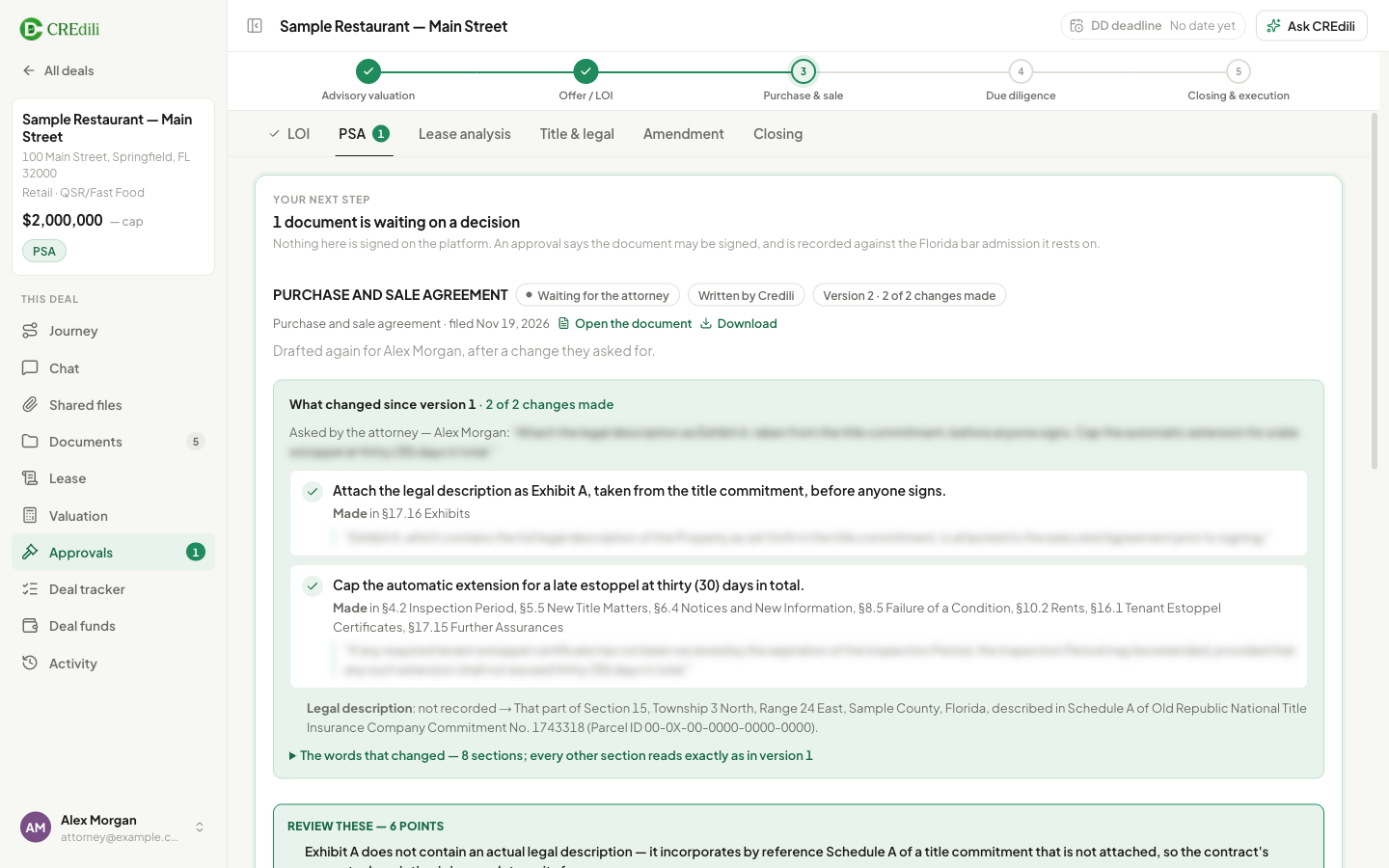
Sometimes a point is a real problem. On this purchase agreement, CREdili pointed out that the legal description of the land was still a blank page — a contract that does not say exactly what land it sells is not ready to sign.
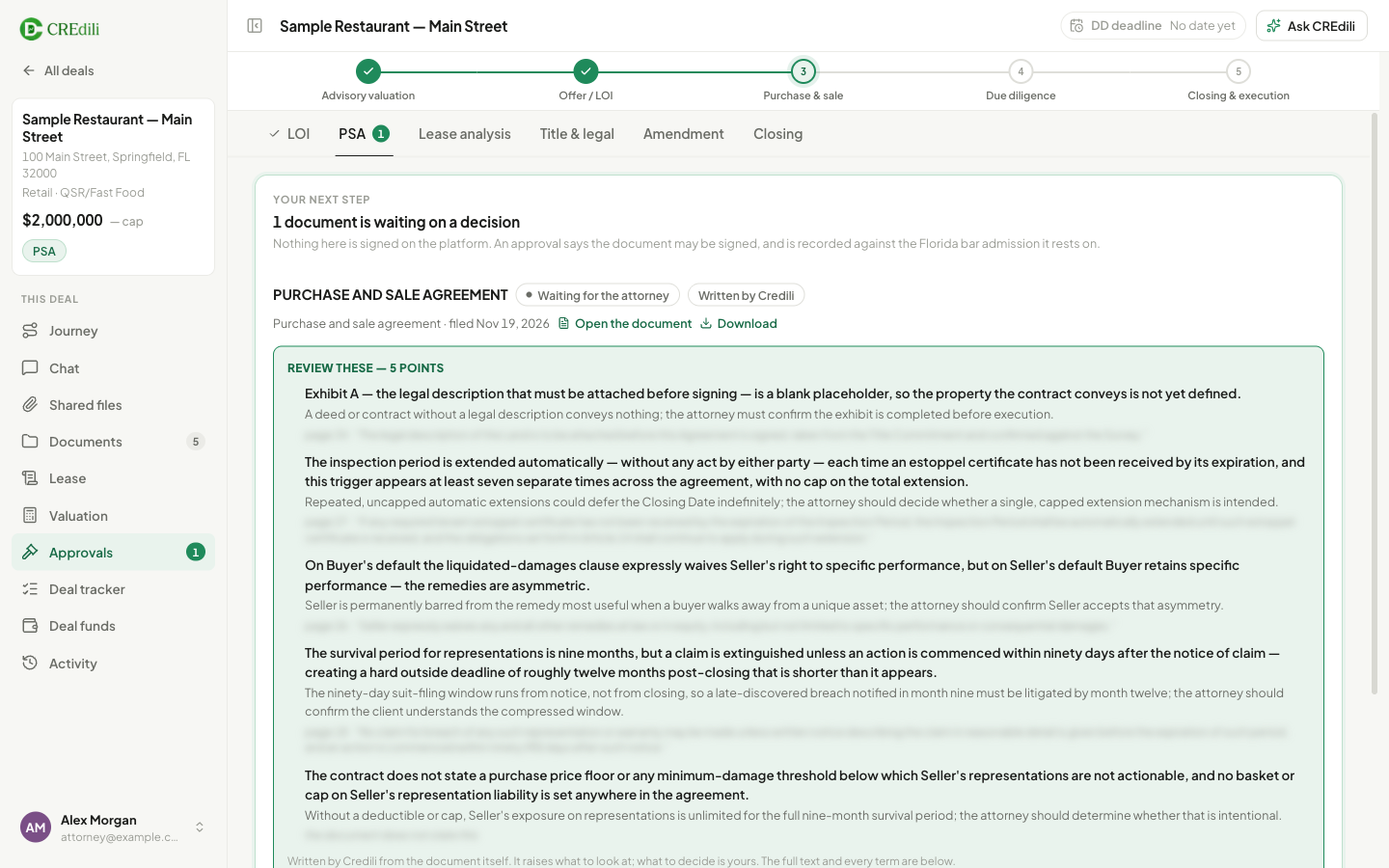
When something has to change:
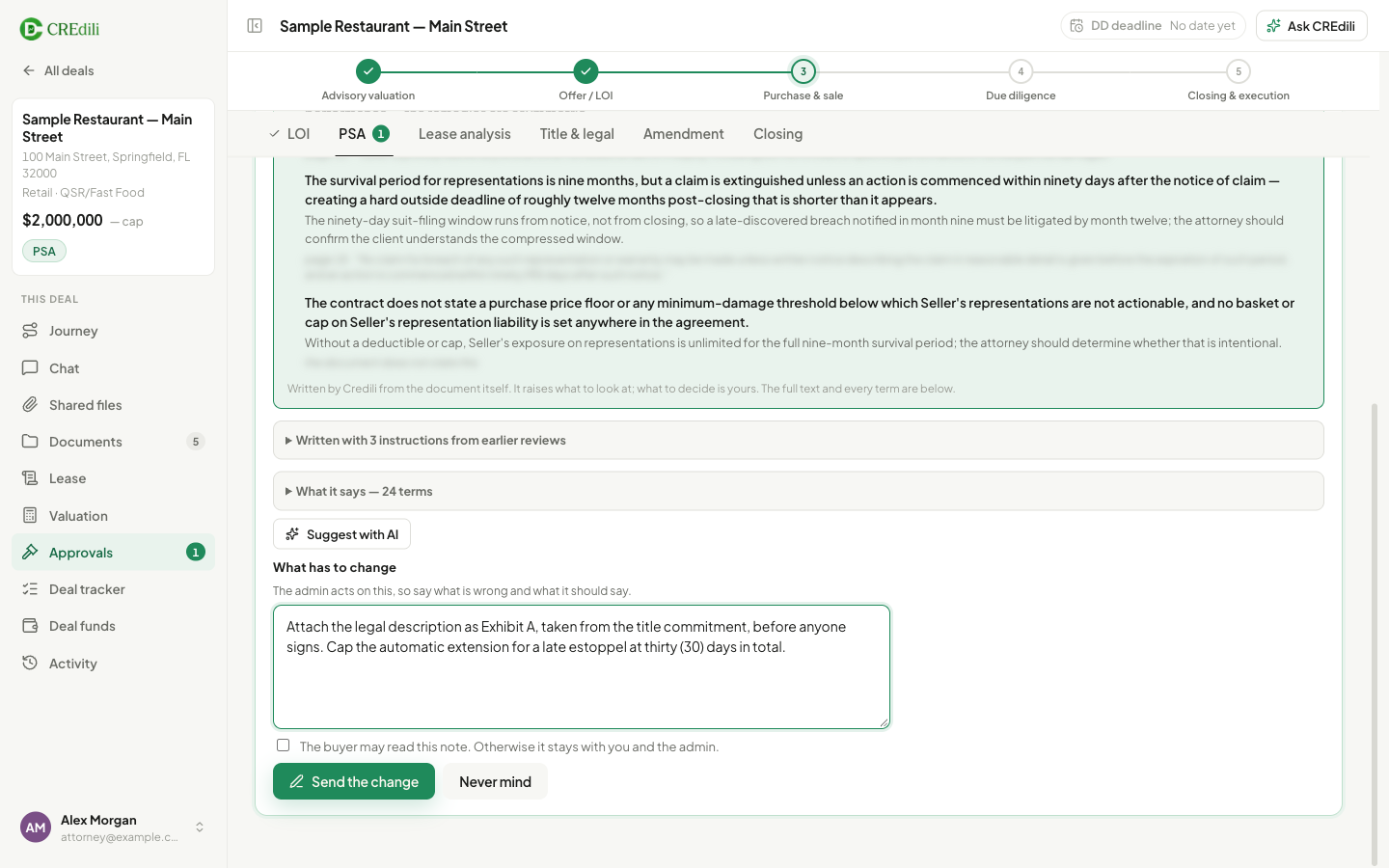
- Press Ask for a change under the paper.
- In What has to change, write what is wrong and what it should say, in your own words. One request can hold several changes.
- Press Send the change.
The admin has CREdili write a new version from your request. It comes back to you on the same tab, marked Version 2, with a box that lists each change you asked for, the sections where it was made and the new words. Every other section reads exactly as before, so you only need to check what changed.
Confirming the deal's dates
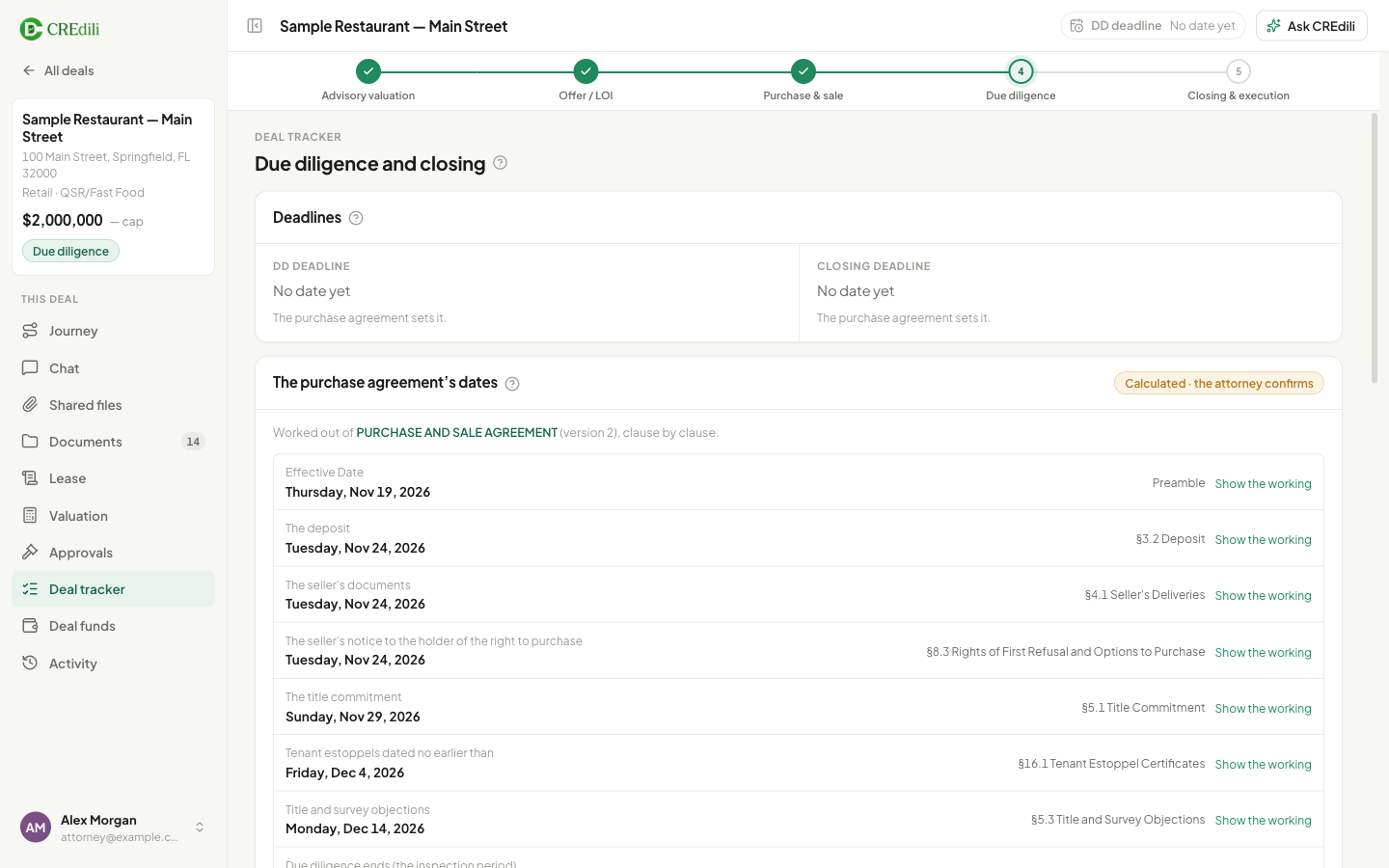
Once the purchase agreement is signed, CREdili works out the deal's deadlines from it — the deposit, the title commitment, title objections, the end of due diligence, the estoppels and the closing. You find them on the Deal tracker.
- Check each date against the clause named beside it. Show the working shows how it was counted.
- Press Confirm these dates.
From then on the dates are the deal's deadlines: everyone sees the due diligence deadline and the closing deadline at the top of the tracker, with the days left.
Title and legal papers
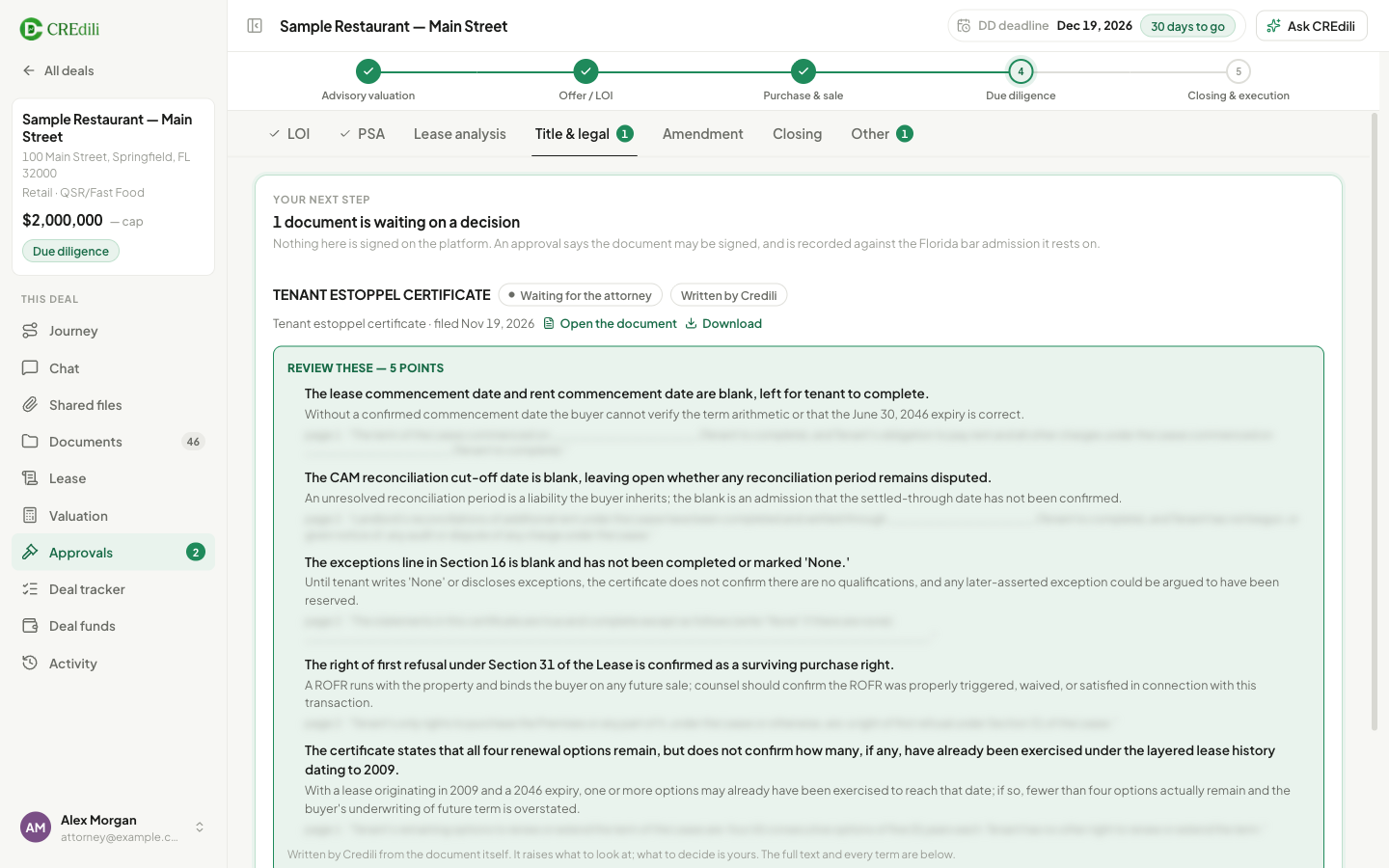
During due diligence CREdili drafts the papers the tenant has to sign, and each one comes to you before it is sent:
- The estoppel certificate — the tenant's signed statement that the lease says what the buyer thinks it says: the rent, the end date, the renewal options and any right to buy. It is on the Title & legal tab.
- The request letter — the landlord's letter asking the tenant to sign it, sent the way the lease requires. It is on the Other tab.
- The waiver of a right of first refusal, where the lease gives the tenant the right to buy the property first. It comes once the lease has been read.
You approve or ask for a change exactly as for the purchase agreement. Blanks marked “Tenant to complete” are meant to be filled in by the tenant — the points tell you which ones to check when the signed copy comes back.
The lease review
In due diligence CREdili reads the tenant's lease and every amendment to it, and checks them against a list of rules — for example, whether the tenant has a right to buy the property, how the rent goes up, and what insurance the tenant must carry. Each rule ends in one of four results:
- Pass — the lease is fine on this point.
- Fail — the lease has a problem on this point.
- Not in the lease — the lease says nothing about it.
- Needs review — the documents did not settle it, so a person has to.
Questions for you
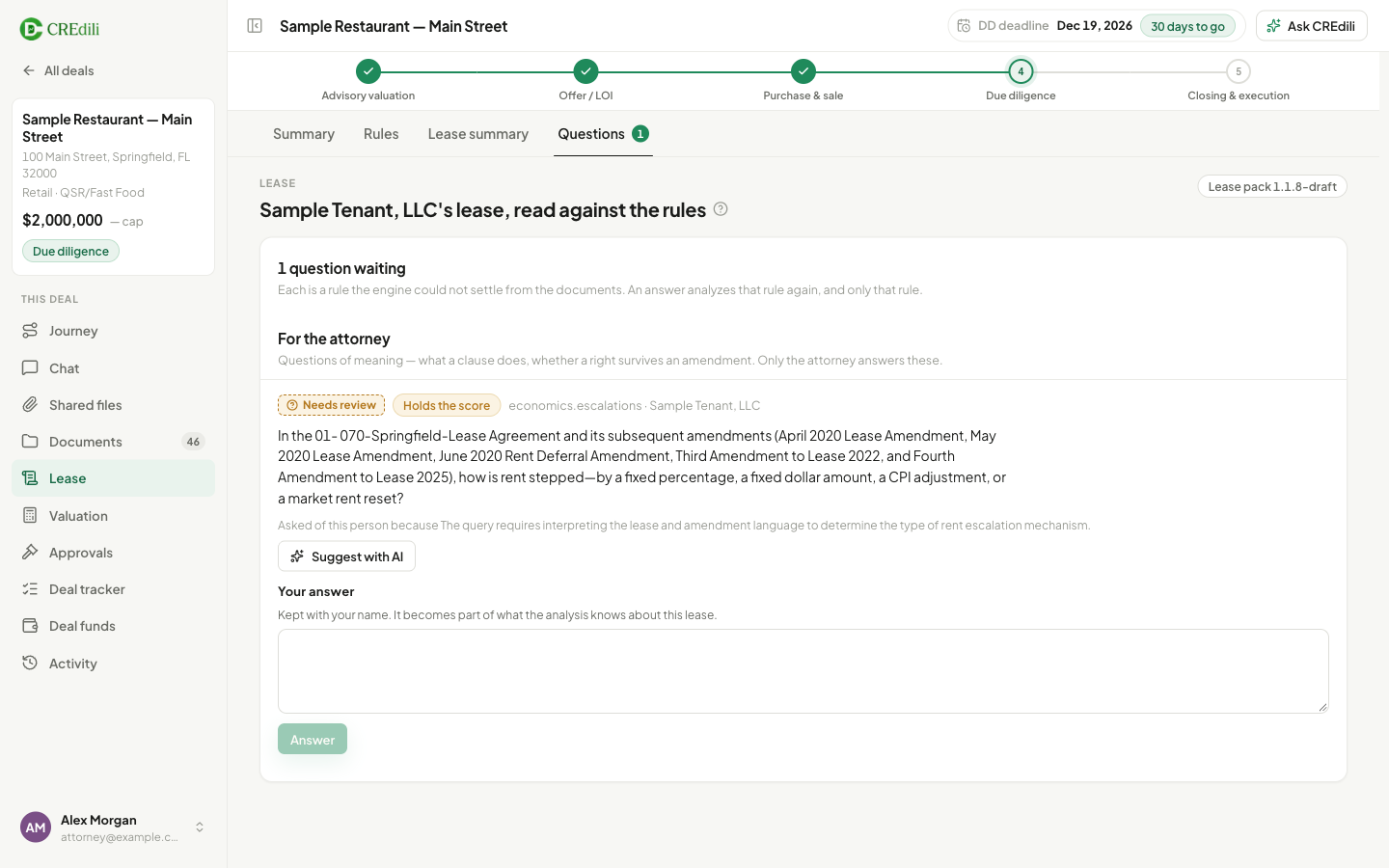
When the documents leave a rule unsettled, CREdili asks a question. Questions about facts go to the admin; questions about what a clause means come to you.
- Open Lease from the menu on the left, then the Questions tab.
- Read the question under For the attorney.
- Type your answer in Your answer and press Answer.
CREdili checks that rule again with your answer and shows the result underneath — for example, “needs review → pass”. The lease gets its score once every question is answered.
Approving the lease analysis
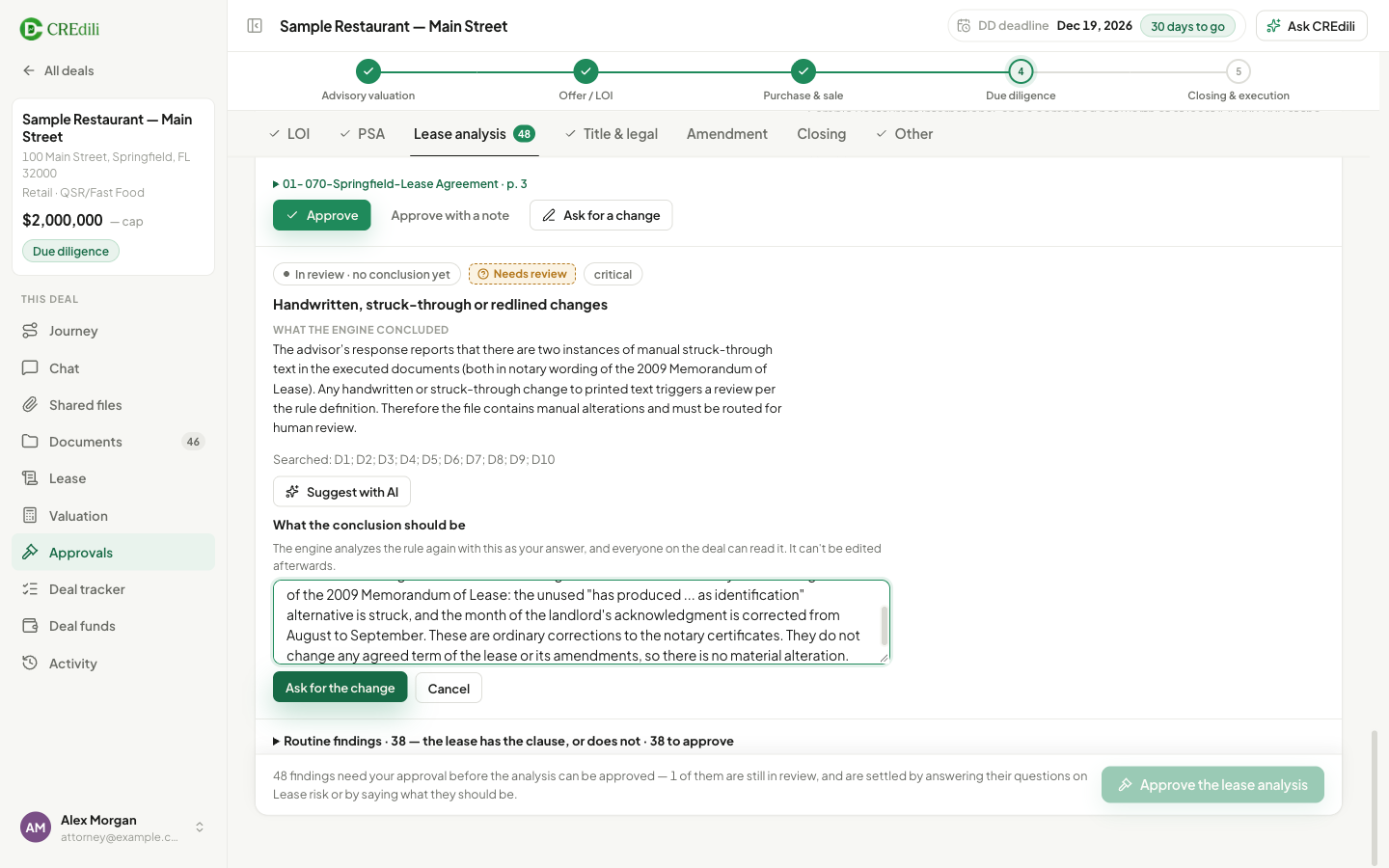
On Approvals, the Lease analysis tab lists every finding — one for each rule, with what CREdili concluded and the pages it relied on. They come in two groups:
- Need your review — the failures, anything still in review, and anything that rests on someone's answer. Read each one.
- Routine findings — the lease simply has the clause, or does not. You can approve them all at once.
- For each finding that needs you, press Approve if the conclusion is right, or Approve with a note to add a comment.
- If a conclusion is wrong, press Ask for a change and write what it should be. For a finding still in review, the button reads Say what it should be.
- Approve the routine findings together with the button at the top of the tab.
- When every finding is approved, press Approve the lease analysis.
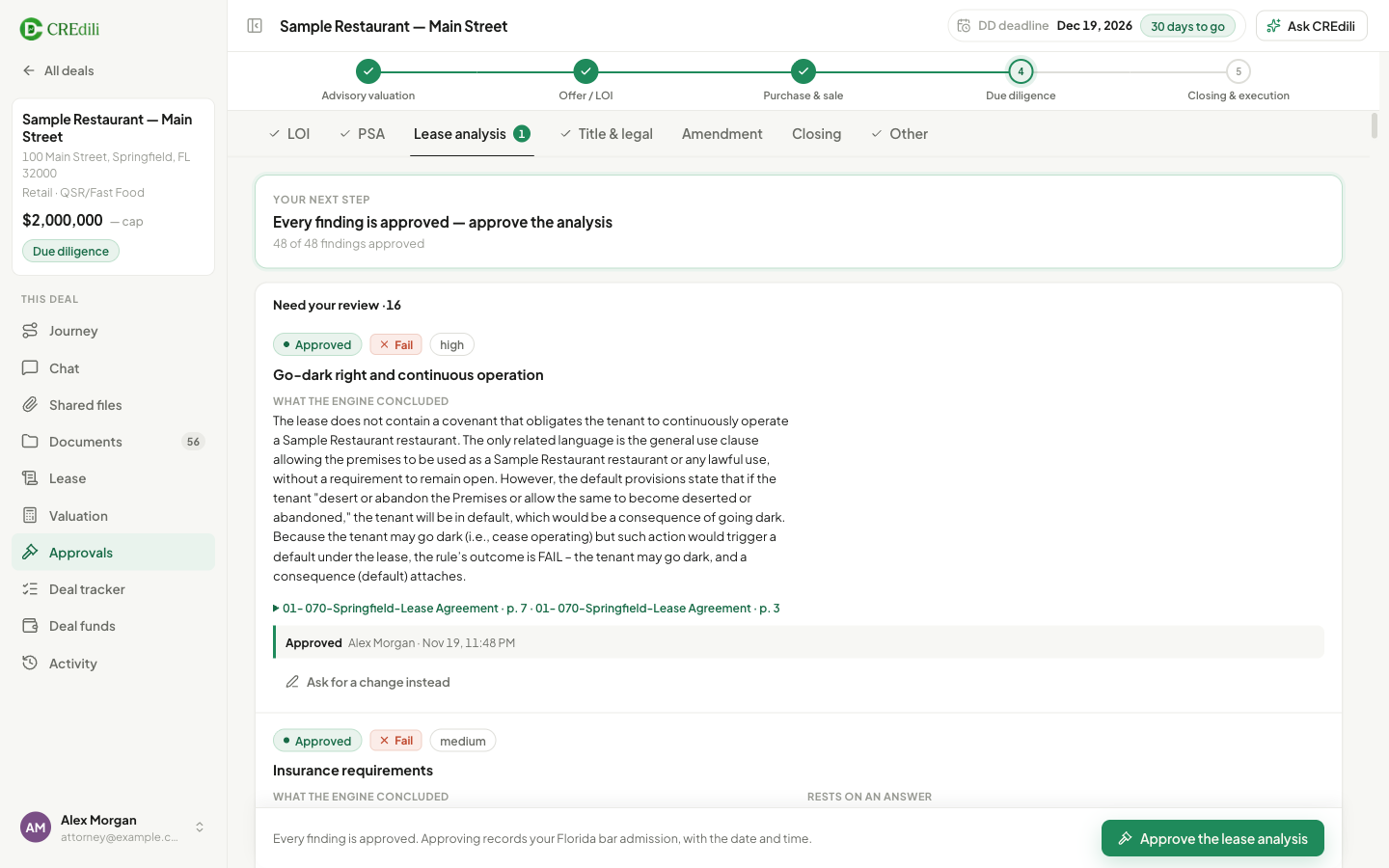
The admin tells you when the analysis is ready for you — on the deal's journey, as “Review the findings and approve the DD package”. If a new lease paper arrives after that, such as the tenant's signed estoppel, CREdili reads the lease again and the findings come back to you to decide once more. Your answers are kept; only the approvals start again.
A change to the agreement
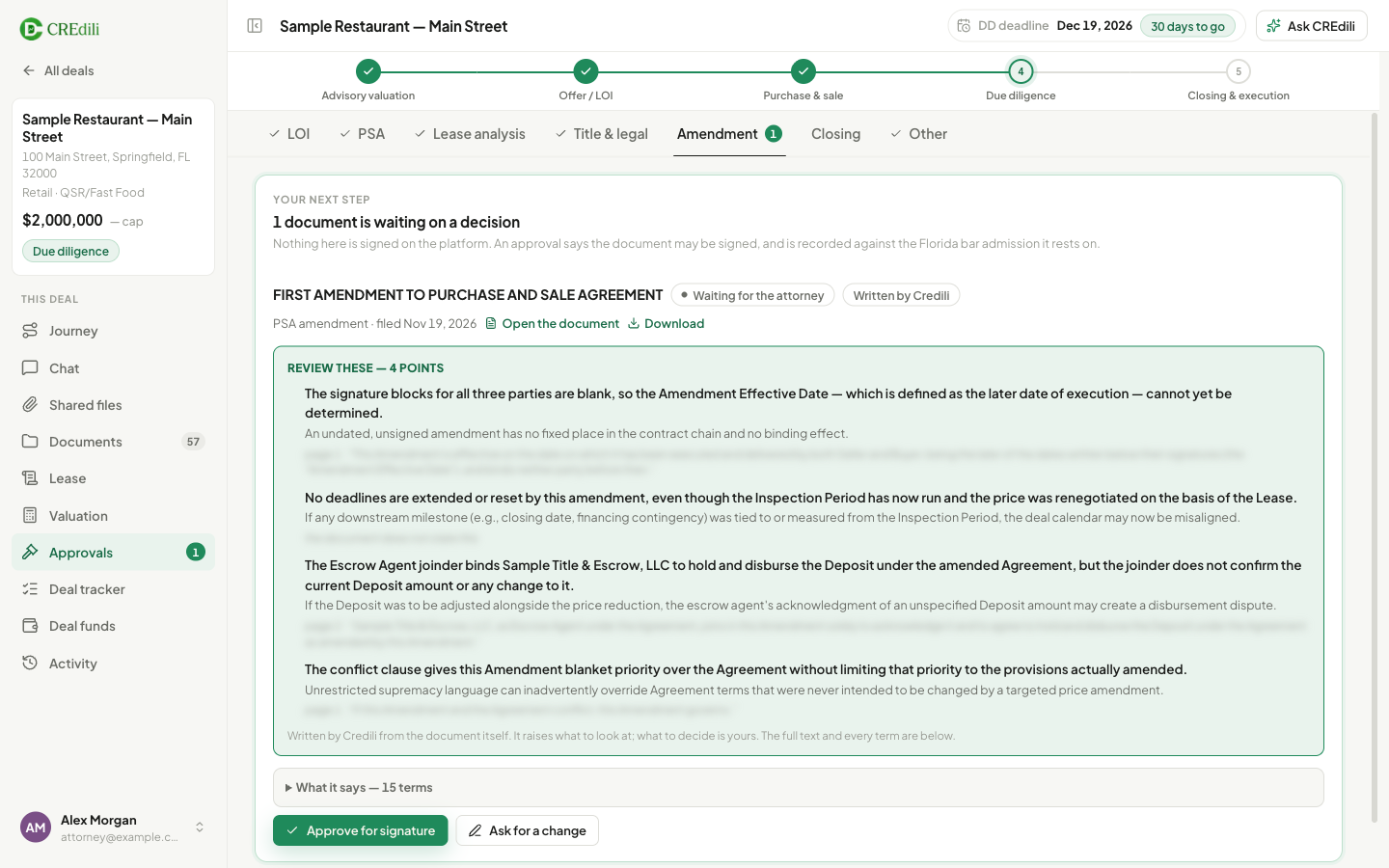
When due diligence leads the buyer and the seller to change the purchase agreement — most often a lower price — CREdili drafts the amendment from what the admin enters. It changes only what it says it changes; everything else in the agreement stands.
- Open Approvals and the Amendment tab.
- Read the points under Review these, and the full text under What it says.
- Press Approve for signature, or Ask for a change and say what has to change.
After you approve it, the admin freezes that version and the buyer says whether they will sign it. Once it is signed, the deal's price is the one the amendment states.
The closing papers
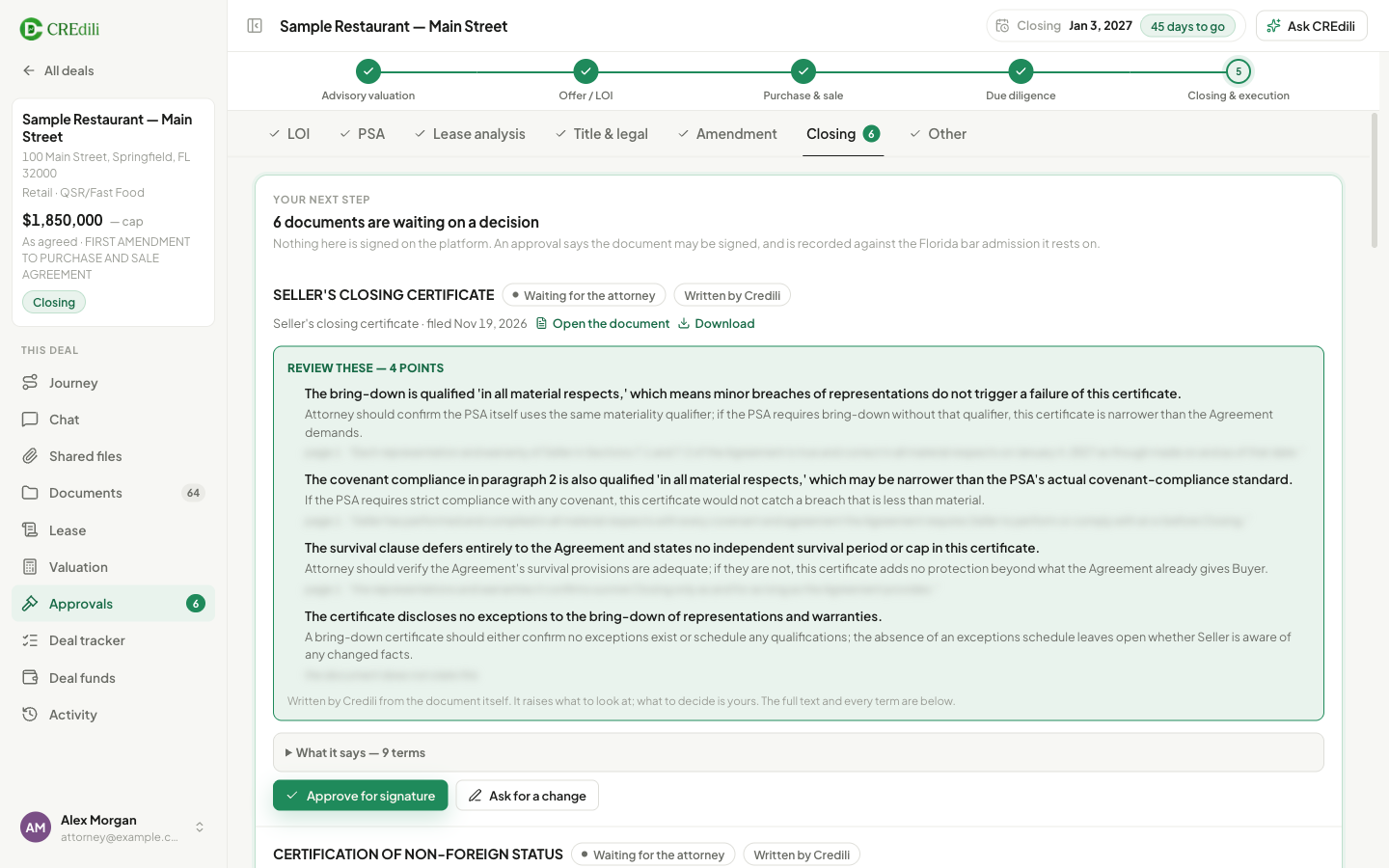
In the last stage CREdili drafts the papers the purchase agreement says the seller delivers at closing — for example the bill of sale, the assignment of the leases, the notice to the tenant, the certificate of non-foreign status and the seller's closing certificate. They all wait for you on the Closing tab.
- Open Approvals and the Closing tab.
- For each paper, read the points under Review these and press Approve for signature, or Ask for a change.
Once every paper is signed and every closing document is in, CREdili checks the settlement statement against the purchase agreement — the price, the deposit, who pays each cost, the rent for the closing day and the taxes — and anything that differs comes to you with the final approval.
Your final approval
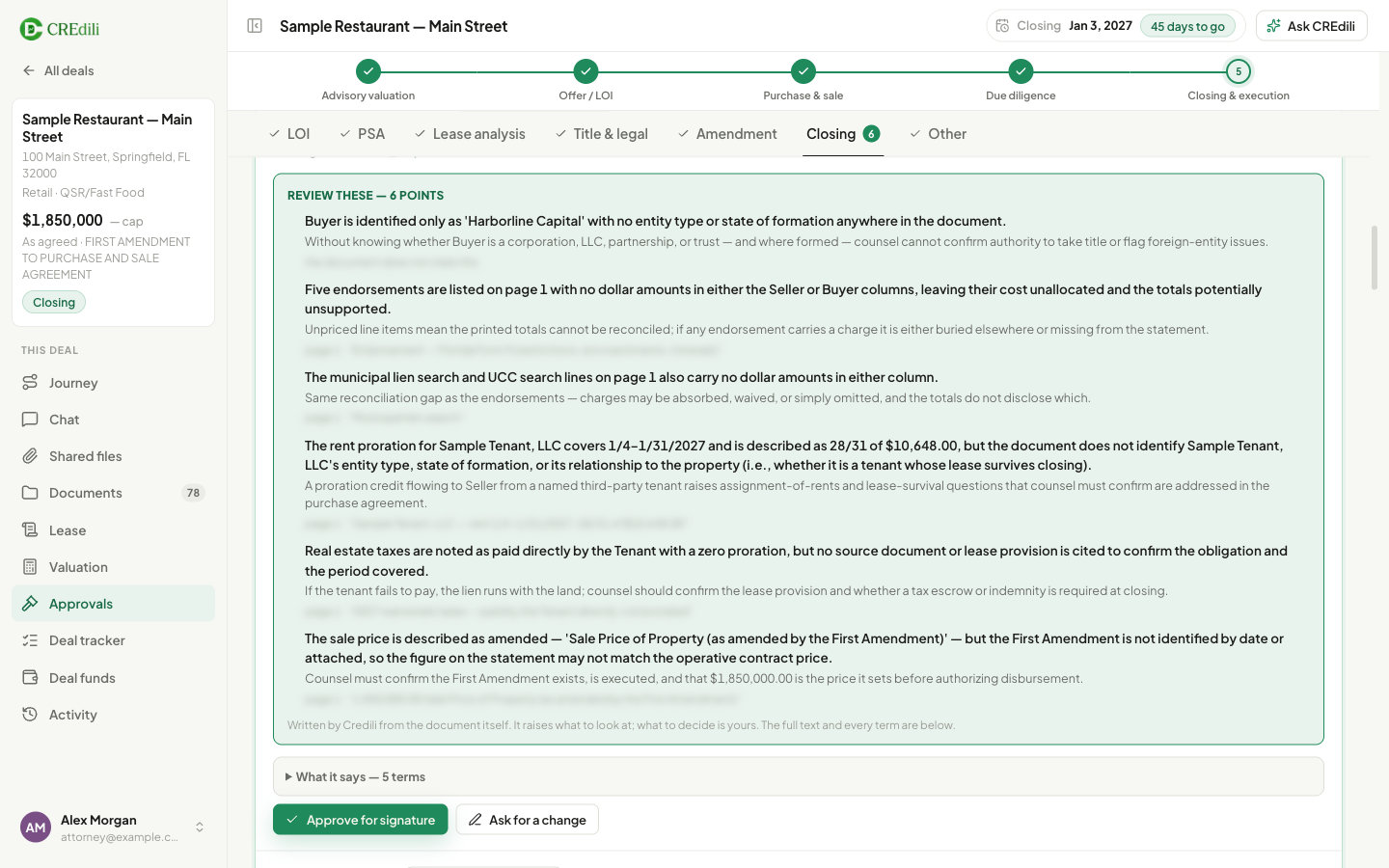
The documents the title company and the parties prepare — the deed, the owner's affidavit, the settlement statement and the buyer's and seller's papers — also come to you on the Closing tab.
- Read the points CREdili raises on each one, especially on the settlement statement.
- Approve each document, or ask for a change.
When every closing document is approved, your final approval is recorded and the buyer is asked to confirm the wire. The admin then files the deed as the county recorded it, and the deal is closed and kept, read-only.
Talking to the team
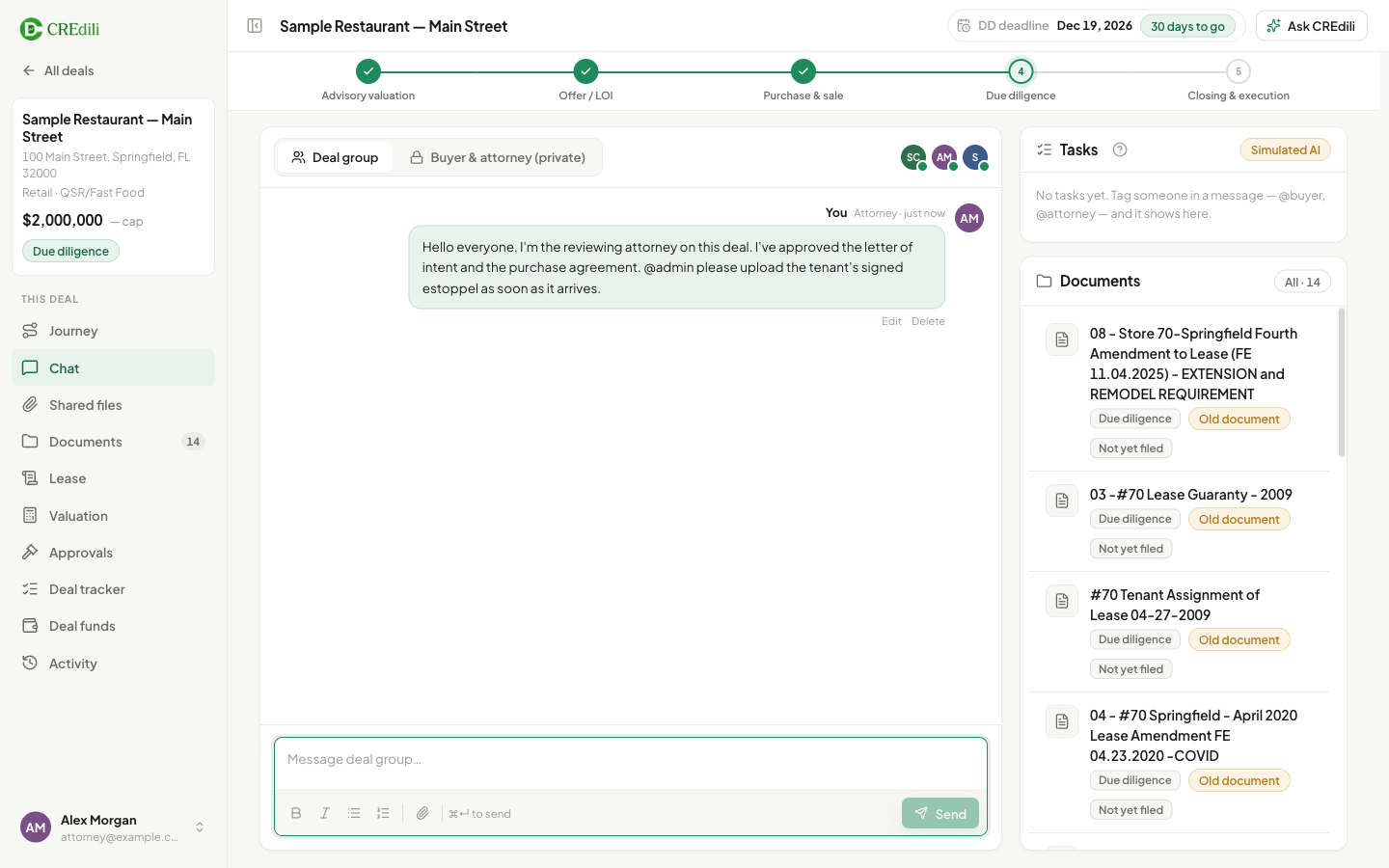
Open Chat from the menu on the left. There are two conversations:
- Deal group — you, the admin and the buyer. Use it for questions about the deal and its documents.
- Buyer & attorney (private) — only you and the buyer. Use it for advice meant for your client alone.
- Type your message in the box at the bottom.
- Press Send, or hold ⌘ and press Enter.
The deal's documents are listed beside the conversation, so you can open one while you write about it. You can attach a file with the paper-clip button.
Words you will see
- LOI
- Letter of intent: the offer letter that sets out the main terms before the contract.
- PSA
- Purchase and sale agreement: the contract between the buyer and the seller.
- Due diligence
- The period after the contract is signed when the buyer checks everything about the property.
- Estoppel
- A tenant's signed statement confirming the facts of its lease, such as the rent and the end date.
- ROFR
- Right of first refusal: a tenant's right to buy the property first, on the same terms.
- Finding
- One rule's result for the lease — pass, fail, not in the lease or needs review — with the pages it rests on.
- Amendment
- A later change to a signed agreement, for example a lower price.
- Settlement statement
- The closing's money sheet: every amount the buyer and the seller pay and receive.
- Freeze
- The admin locks the version you approved, so the buyer reads exactly that one.
- Version
- Each new draft of a paper gets the next number. Older versions are kept.
Need help?
Ask the admin in the deal's Chat — they answer questions about the deal's facts. For anything about using CREdili, write to contact@credili.ai.